| The HTML Importer allows you to crawl a web site, download files that are linked
from the web pages and create entries for those files.
|
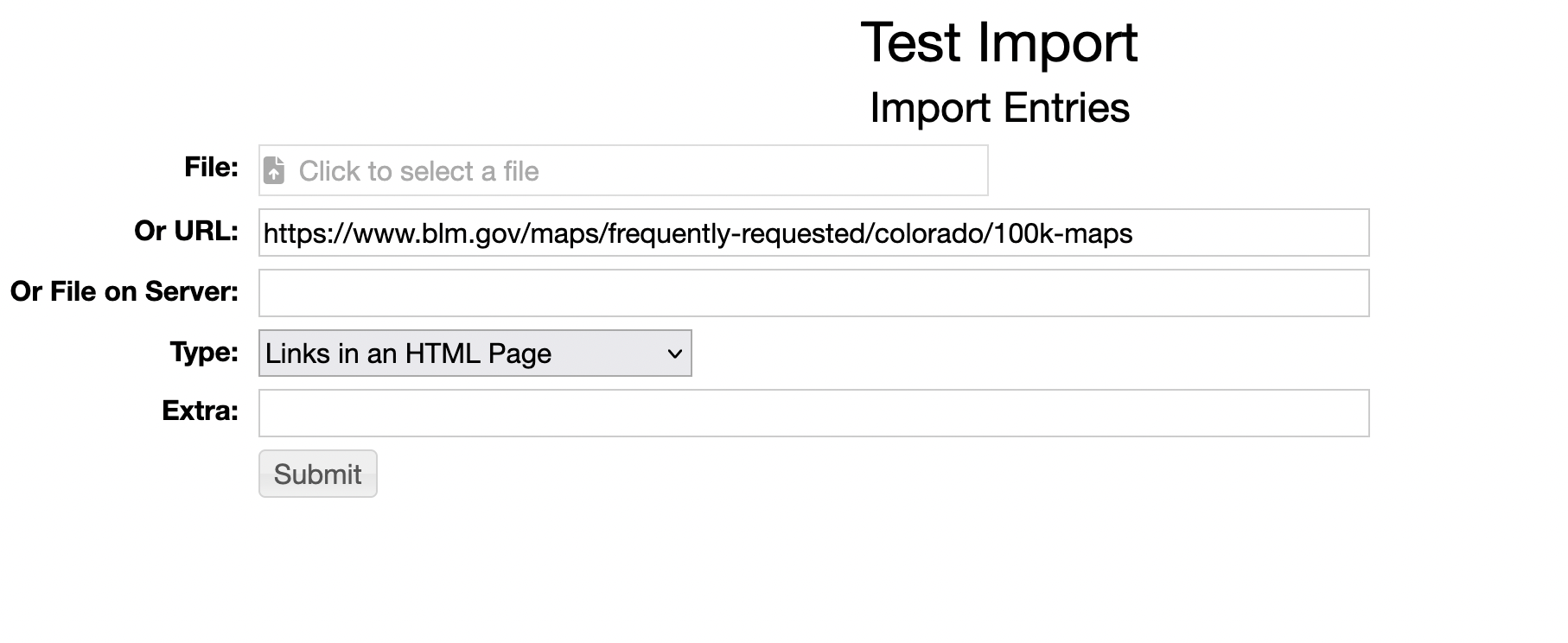
The HTML Importer works through the normal entry Import.
Specify the URL you want to crawl and for Type specify "Links an in HTML Page"
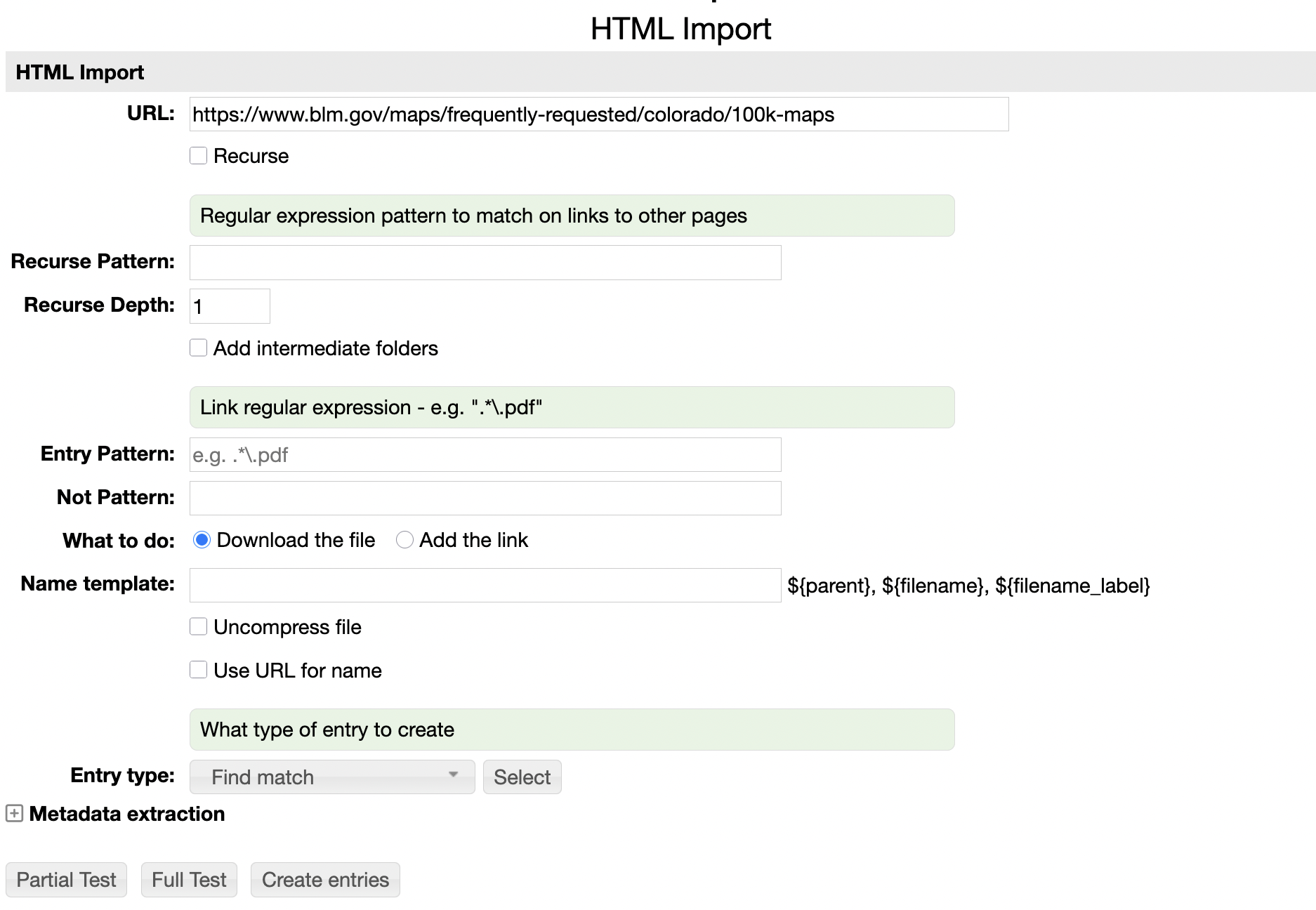
The HTML Import form allows you to specify the source URL, whether that
page should be recursed down and how to handle the files.
The simple case is that the source page has links to one or more files of interest
(e.g., images, PDFs, etc).
In this case you would skip over the "Recurse" settings (since only the source file is processed).
You would specify the Entry Pattern, a regular expression that each link in the source page
is checked against. If the link matches the pattern then whatever file is linked to
will be processed. You can choose to download the file and add it to RAMADDA
or simply add the URL as a Link entry.
- Recurse - Should the web pages that the page links to be themselves crawled
- Recurse Pattern - A regular expression pattern that is used to match links to recurse to
- Add intermediate folders - If checked then RAMADDA will add Folder entries that correspond to each web page
- Entry Pattern - A regular expression for determining what links are downloaded and added to RAMADDA
- Not Pattern - A regular expression that allows you to exclude specific files
- What to do - Download the file and add it to RAMADDA or just add a Link
- Name template - An optional template for specifying the name of the created entry
- ${parent} - The name of the parent RAMADDA entry
- ${filename} - The name of the file minus the file extension
- ${filename_label} - A cleaned up version of the file name
- Uncompress file - Sometimes the file is a .zip file that contains the file you really want
- Use URL for name - Use the whole URL for the entry name
- Entry type - The entry type to use for the new entries
- Metadata extraction - The usual RAMADDA metadata extraction settings, e.g. do OCR on images, apply LLM, etc
- Partial Test, Full Test, Create Entries - It is best to do a Test before creating entries. The Partial Test will just try a small number of pages and list the results. The Full Test will process all pages.
Here is a working example harvesting a set of PDF map files
from the BLM site
https://www.blm.gov/maps/frequently-requested/colorado/100k-maps.
The result of this harvest can be seen on ramadda.org at
Colorado BLM Maps.
The main blm.gov page has links to other web pages (e.g.
https://www.blm.gov/documents/colorado/public-room/map/co-surface-management-status-alamosa-map)]
that contain a link to the PDF map file.
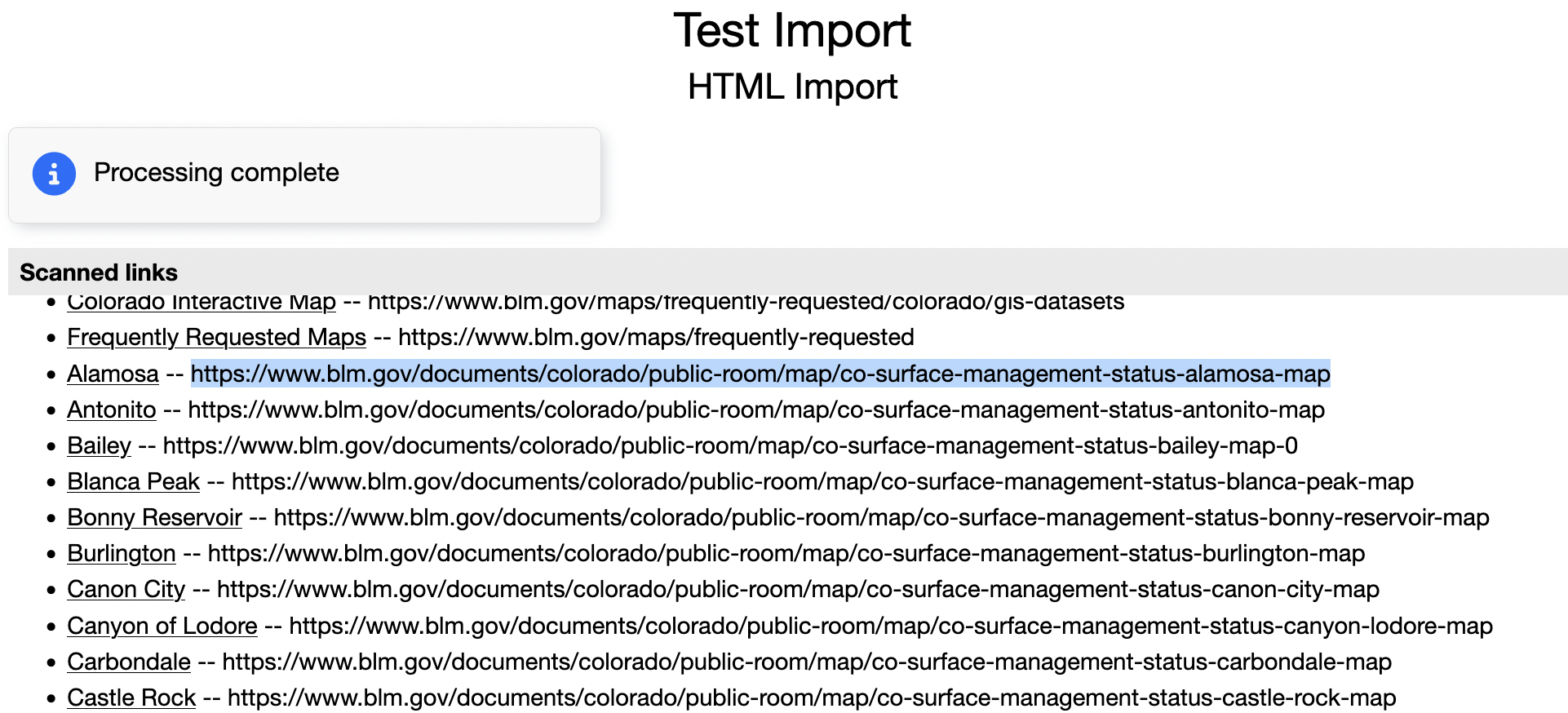
First off, we are going to check the page by doing a "Partial Test"
This lists all of the links contained by the web page. But we are really only
interested in the ones that point to the map pages, e.g.
https://www.blm.gov/documents/colorado/public-room/map/co-surface-management-status-alamosa-map
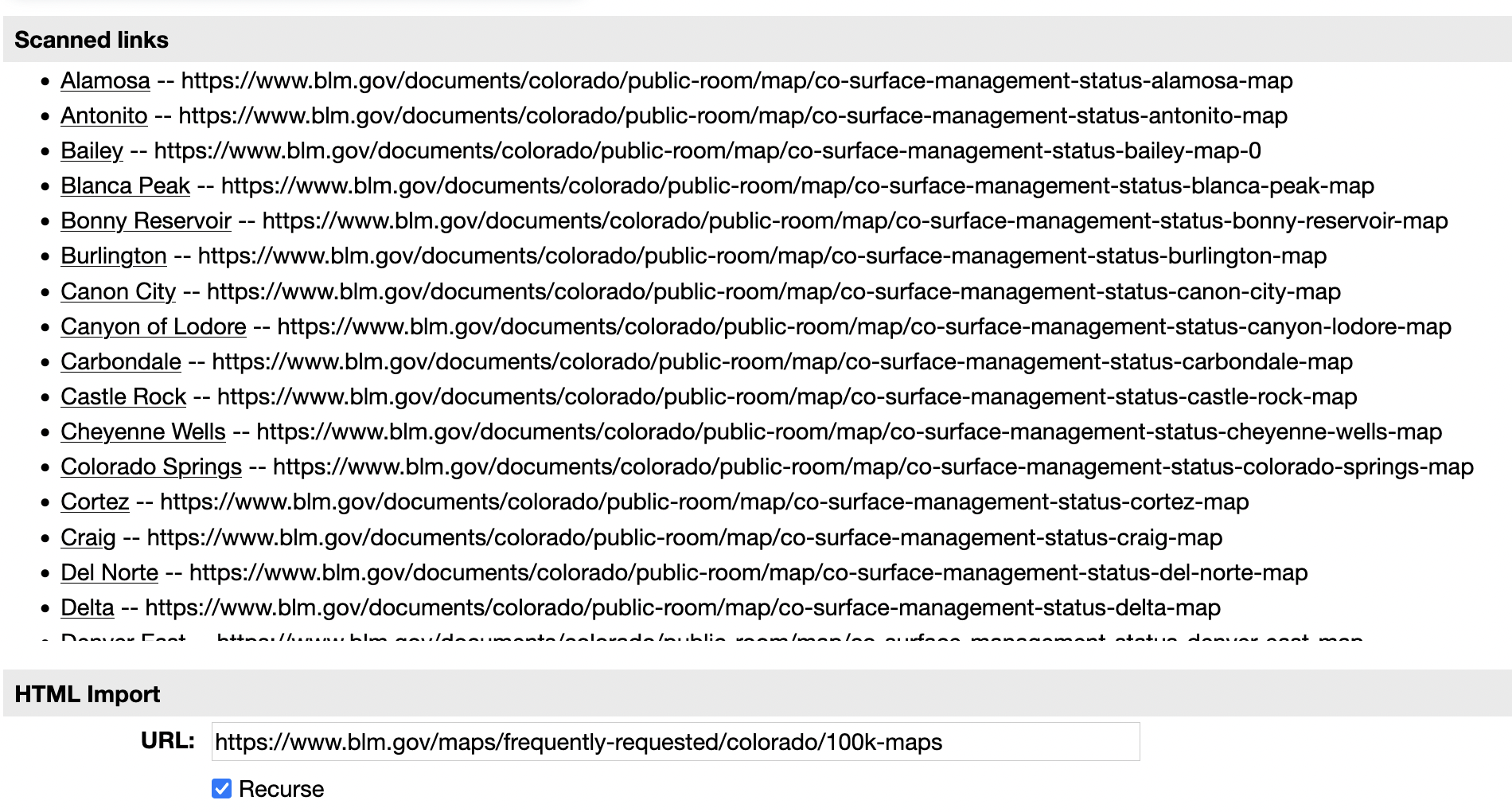
So, now we check on "Recurse" and we specify a Recurse Pattern and run the Partial Test again
.*public-room/map/.*
This time we see just the pages we want-
Next up we want to specify an Entry Pattern that matches PDF files-
.*.pdf
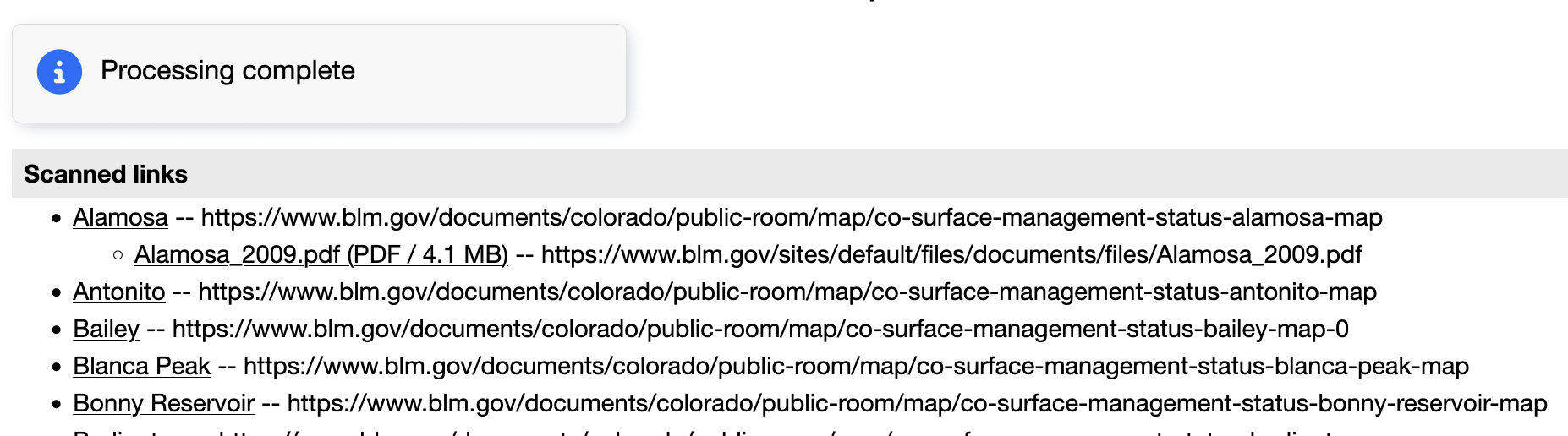
And we run the Partial Test again and we see that the Alamosa page has a
single link to a PDF map file -
https://www.blm.gov/sites/default/files/documents/files/Alamosa_2009.pdf
Because we ran a Partial Test only the first page recursed
(the Alamosa page) is processed. If we ran a Full Test then all
of the pages would have been processed.
Once we are happy with the results we can press Create Entries.
All of the linked to PDF files will be downloaded and added the the
Test Import. If we wanted to preserve the web site hierarchy we could
check on "Add intermediate folders".